I’ve tested more graphic design software than I care to admit.
You’re probably here because you’re staring at dozens of options and have no idea which one to pick. Should you pay for Adobe? Try Figma? Stick with Canva?
Here’s the thing: the right tool depends on what you’re actually making. A logo designer needs different features than someone editing photos or building app interfaces.
I spent weeks testing the most popular design tools out there. Not just opening them once. Actually using them for real projects.
This guide breaks down which software works best for specific tasks. I’ll show you what’s worth paying for and what free options actually hold up.
GFX Digitational focuses on helping creators cut through the tech noise. We test tools, track what’s new, and figure out what actually matters for people making things.
You’ll learn which programs are best for logo design, photo editing, UI/UX work, and digital illustration. No fluff about features you’ll never use.
By the end, you’ll know exactly which tool fits your work. Not which one has the most buzz.
The Foundation: Understanding Vector vs. Raster Graphics
Here’s something most design tutorials get wrong.
They’ll tell you raster graphics are for photos and vector graphics are for logos. Then they move on like that’s all you need to know.
But that oversimplifies things to the point where it’s almost useless.
Let me explain what’s actually happening with these two formats.
Raster graphics are pixel-based images. Think JPEGs, PNGs, and GIFs. Each pixel holds a specific color value, and when you zoom in far enough, you see those little squares. They’re perfect for photographs and digital paintings where you need tons of color variation and detail.
The catch? Scale them up and they fall apart. That crisp headshot becomes a blurry mess when you try to print it on a billboard.
Vector graphics work differently. SVGs and AI files use mathematical paths instead of pixels. A circle isn’t a collection of colored dots. It’s a formula that says “draw a circle with this radius at this location.”
Scale it to any size and it stays sharp. That’s why designers use vectors for logos, icons, and typography.
Now here’s where the conventional wisdom breaks down.
Most people think you pick one format and stick with it for a project. But that’s not how professional work happens at gfxdigitational. You end up switching between both depending on what you’re doing.
| Format Type | File Types | Best For | Scaling |
|————-|————|———-|———|
| Raster | JPEG, PNG, GIF | Photos, complex textures | Fixed resolution |
| Vector | SVG, AI | Logos, icons, type | Infinite |
I’ve watched designers waste hours trying to force the wrong format into a project because someone told them “always use vector” or “raster is more versatile.”
The truth is simpler. Know what you’re making, then pick the tool that fits.
The Industry Standards: Professional-Grade Toolsets
Let me be blunt about something.
If you’re serious about design work, you’re probably going to end up with Adobe software. I know that’s not what people want to hear (especially when they see the subscription price), but it’s the reality. While many emerging designers may seek alternatives to Adobe, the undeniable depth and versatility of its tools, often complemented by resources like Gfxdigitational, make it a staple in the industry for those serious about their craft. While many emerging designers may seek alternatives to Adobe, platforms like Gfxdigitational offer innovative tools that can enhance your creative workflow without the hefty subscription fees.
Adobe Photoshop is still the king. No contest.
You want to manipulate photos? Photoshop. Digital painting? Photoshop. Complex compositing that makes your client’s jaw drop? Also Photoshop.
The layers system alone changed how I think about editing. Add in masks and you’ve got pixel-perfect control over every element in your composition. The brush library is massive. Color correction tools go deeper than most people will ever need.
But here’s what I really appreciate. When you’re three hours into a project and need to make one specific adjustment, Photoshop has the tool for it.
Adobe Illustrator handles everything Photoshop can’t.
Vectors are a different beast. Logos need to scale from business card to billboard without looking like garbage. Icons need clean lines. Brand identity systems require precision that raster graphics just can’t deliver.
The Pen Tool takes time to master (I won’t lie to you), but once you get it, you can draw anything. The Shape Builder makes combining elements feel natural instead of like solving a puzzle.
And yeah, it talks to Photoshop without any weird file conversion headaches.
The Creative Cloud suite is where things get interesting.
InDesign for layout work. After Effects when you need motion graphics. The whole ecosystem works together in ways that save me hours every week.
Some designers complain about the subscription model. Fair point. But when I’m pulling assets between programs or using the latest features that showed up in news gfxdigitational last month, I get why studios stick with it.
It’s the professional choice because clients expect Adobe files. Other software tools gfxdigitational might cover are great, but try sending a Photoshop alternative file to an agency and watch the confusion happen.
That’s just how the industry works right now.
Powerful & Accessible Alternatives (No Subscription Needed)
Look, I’ll be honest with you.
I wasted two years telling myself I needed Adobe to do professional work. Spent hundreds on subscriptions I barely used because I thought that’s what real designers did. After realizing that I had been misled into believing that professional design required expensive software, I found a refreshing perspective in the latest insights from News Gfxdigitational, which highlighted the value of creativity over costly subscriptions. After breaking free from the misconception that professional design hinged on costly software, I stumbled upon a community of creatives sharing invaluable insights, including the latest trends highlighted in News Gfxdigitational, which opened my eyes to more accessible and innovative tools.
Then my credit card got declined during a tight month and I panicked. I had client work due and no access to my files.
That’s when I learned something important. You don’t need a subscription to create professional work.
Some people will tell you Adobe is the only serious option. That anything else is just playing around. I used to believe that too.
But they’re wrong.
Affinity Suite (Designer, Photo, Publisher) changed how I think about software tools gfxdigitational. You pay once and you’re done. Affinity Designer combines vector and raster work in the same app, which honestly makes more sense than switching between programs. I use Affinity Photo for photo editing and it handles everything I used to do in Photoshop.
The learning curve? Shorter than you’d think.
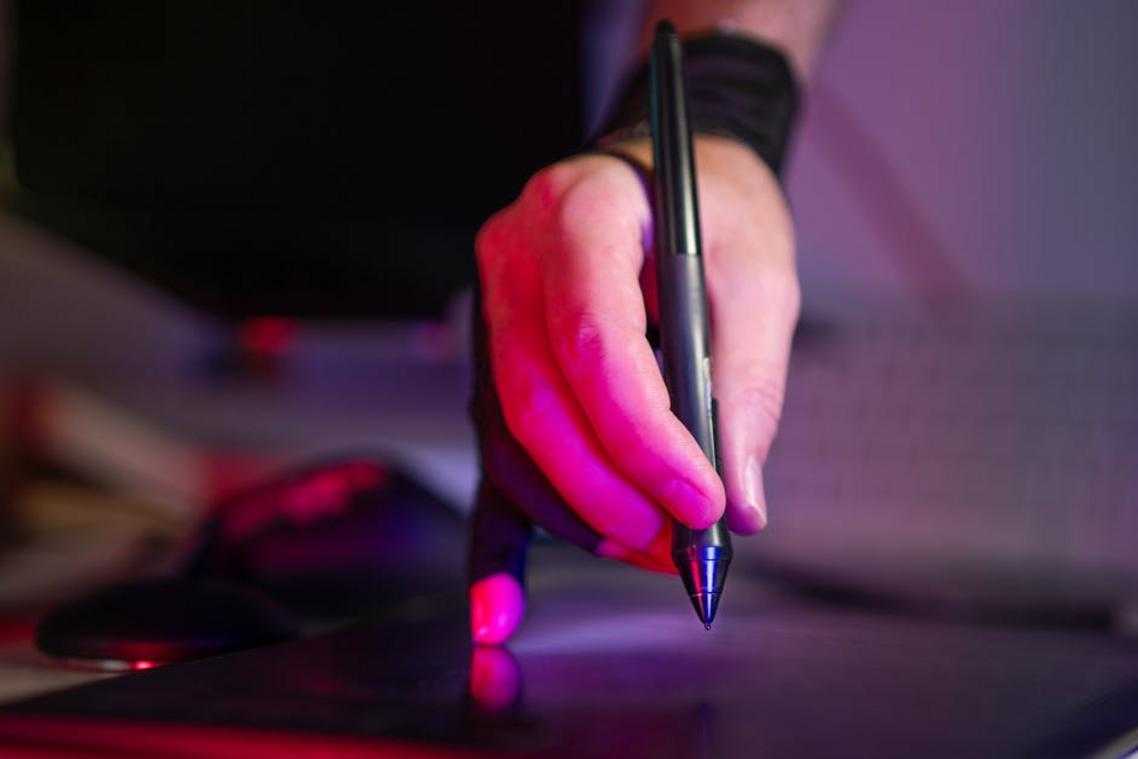
Procreate is where I messed up initially. I bought an iPad thinking it would replace my desktop setup for what are graphic design jobs gfxdigitational require. It doesn’t. But for illustration and digital painting? Nothing beats it. The brush engine is better than anything I’ve used, and you can work anywhere.
I just wish I’d understood its limits before selling my Wacom tablet.
CorelDRAW surprised me. I ignored it for years because it seemed outdated. Then I worked with a sign shop that swore by it. Turns out it’s incredibly powerful for vector work and print production. The interface feels different but the capabilities are there.
Here’s what I wish someone had told me earlier. One-time purchases mean you actually own your tools. No panic when money gets tight. No losing access to your work.
That’s worth more than any feature list.
Web-Based & Collaborative Tools: The Future of Design
I remember when design software meant installing massive programs that took up half your hard drive.
Those days are gone.
Now I open a browser tab and I’m designing. No downloads. No version conflicts. No waiting for IT to approve software requests.
Figma changed everything for UI/UX work. It runs entirely in your browser and lets multiple people work on the same file at once. I can watch my teammate move elements around while I’m adjusting colors on the same screen.
The component system is what really makes it work. You build a button once and use it everywhere. Change it in one place and it updates across your entire project. (This alone has saved me countless hours of tedious updates.)
Then there’s Canva. Some designers look down on it but that’s missing the point.
You need a social media graphic in ten minutes? Canva’s got you covered. Your marketing team needs to make their own slides without bugging you? Perfect use case.
It’s not trying to be Figma. It’s solving a different problem with its template library and drag-and-drop setup. Non-designers can actually make decent-looking stuff without a three-week learning curve.
Here’s what matters most though.
These tools work because teams are scattered now. I’ve got clients in three time zones. We can’t all sit around the same monitor anymore.
Cloud-based design means I start something in the morning and my colleague in California picks it up in the afternoon. No file exports. No email chains with “finalv3ACTUAL_final.fig” attachments. As the seamless collaboration afforded by cloud-based design reshapes our workflow, it raises an intriguing question: What Are Graphic Design Jobs Gfxdigitational, and how do they adapt to this new paradigm of creativity and efficiency? As our team embraces the efficiency of cloud-based design, it naturally leads to a deeper inquiry into the evolving landscape of creative careers, prompting me to ask, “What Are Graphic Design Jobs Gfxdigitational?
The software tools at gfxdigitational reflect this shift. Real-time collaboration isn’t just a nice feature anymore. It’s how design actually happens now.
Selecting the Right Tool for Your Creative Vision
We’ve covered a lot of ground here.
You’ve seen what Photoshop brings to the table with its raster power. You know how Figma handles collaborative vector work. And you understand where Canva fits in for quick accessible design.
The real challenge isn’t finding tools. It’s matching the right one to your project and budget.
That’s where most designers get stuck. They pick software based on what everyone else uses instead of what they actually need.
Now you have a clear picture of how these tools differ and when to use each one. You can make decisions that support your work instead of fighting against it.
Here’s what to do: Figure out your main design need right now. Pick one tool from this guide that matches it. Grab a free trial and start creating.
GFXdigitational exists because I believe you should spend time designing, not wrestling with the wrong software.
Your creative vision deserves tools that work with you. Now go build something. Homepage.