
Know What You’re Working With
Start with a quick scan of your network. Pull up your router’s dashboard (usually by typing 192.168.0.1 or similar into your browser). Look for the list of connected devices. If anything looks unfamiliar an old phone, a neighbor’s laptop, or something labeled just “unknown” kick it off. If you’re not managing your device list, someone else might be using your bandwidth or worse.
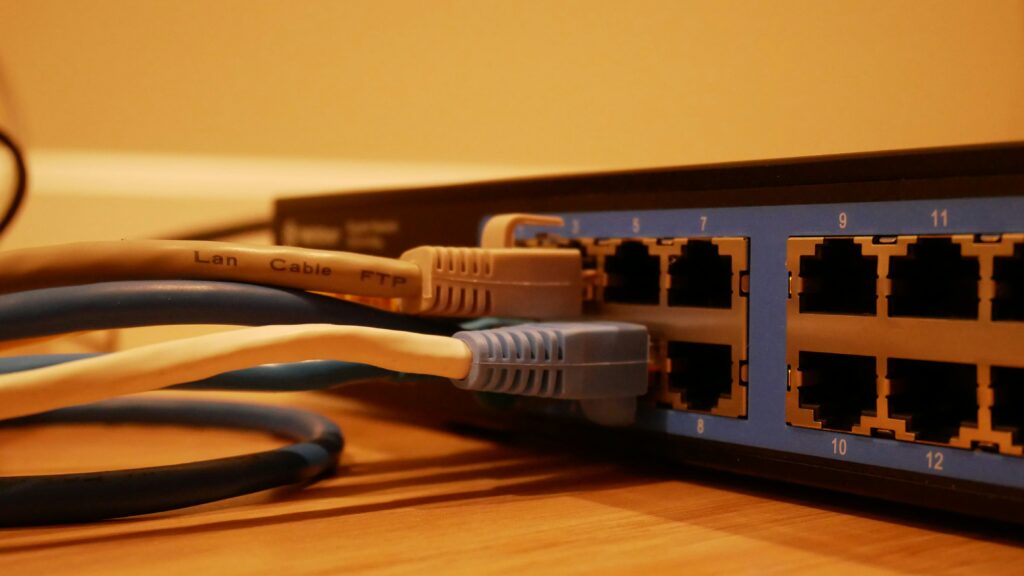
Now, know your gear. Your modem connects to your ISP and brings the internet into your home. Your router distributes that connection wirelessly. If you’ve got a large house or consistently weak signal, a mesh system uses multiple nodes to blanket your space with coverage. Don’t confuse the three they each do a different job.
And if you’re renting hardware from your internet provider, it might be time for an upgrade. Older ISP gear is often slow, insecure, and overpriced in the long run. You don’t need to splurge just make sure your equipment supports current security standards and can actually keep up with your speed plan.
Change Default Settings Immediately
Your router’s out of the box setup is only meant to get you online not to keep you secure. Default names, passwords, and open settings are a known vulnerability targeted by attackers. Taking just a few minutes to personalize and strengthen these settings can dramatically reduce your risk.
Rename Your Network (SSID) Wisely
Avoid giving away personal information through your network name. While it’s tempting to name your Wi Fi after yourself or your address, that can make you a target.
Pick a generic, unique name that doesn’t identify you or your location
Avoid including any personal info, such as names or apartment numbers
Don’t use default names like “Linksys” or “Netgear” they reveal your hardware brand
Craft a Strong, Unique Wi Fi Password
Weak or reused passwords are a hacker’s easiest entry point. Set your Wi Fi password with both length and complexity in mind.
Use at least 12 characters
Mix upper and lowercase letters, numbers, and symbols
Don’t reuse passwords from your other accounts
Consider using a secure password manager to store and generate complex passwords
Update Your Router’s Admin Credentials
Your router has a separate login used to access its settings interface. Leaving this as the default (often “admin/admin”) is a common and serious mistake.
Change both the admin username and password
Use a completely different set of credentials from your Wi Fi login
Store these credentials safely you’ll need them to manage router settings in the future
Taking these three steps will instantly move your home network from “vulnerable” to “much safer.” And each one only takes a few minutes to implement.
Update Everything Before You Begin
Before you tackle passwords or network settings, get your gear up to date. Start with your router check the manufacturer’s website or your router’s admin dashboard for firmware updates. These often fix security flaws and patch vulnerabilities attackers already know about. If your router hasn’t been updated in a year or more, consider that a red flag.
Next, hit every connected device with OS updates. That means phones, laptops, smart TVs, tablets, even that fridge that streams Spotify. Hackers love outdated systems because known bugs are easier to exploit. An old tablet or forgotten smart bulb that’s never been updated is basically a back door into your network.
Bottom line: skipping updates is like leaving your front door unlocked. They’re not optional. They’re your first line of defense.
Lock Down Your Router Settings
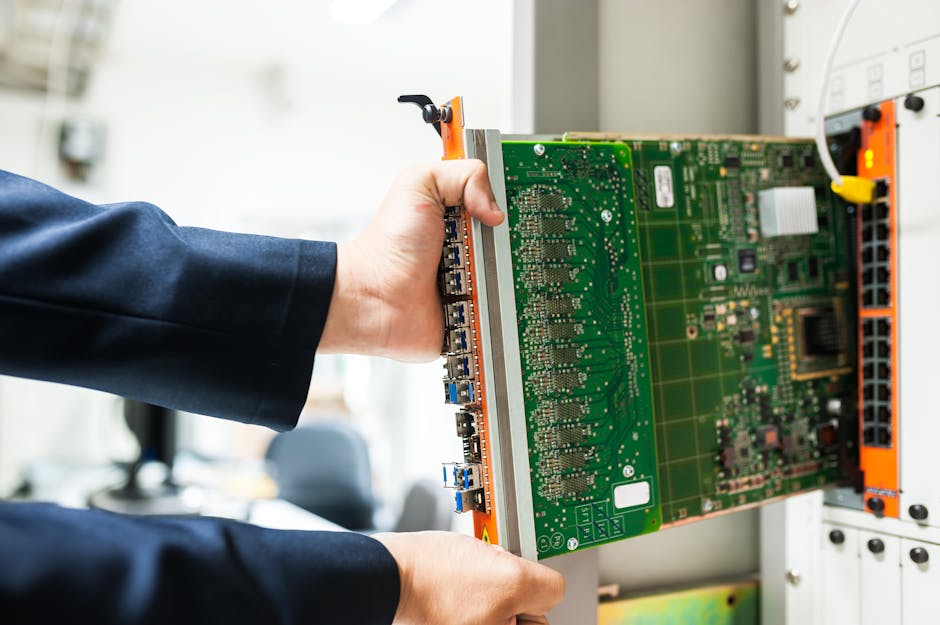
First rule: encrypt everything. WPA3 is what you want it’s the most secure Wi Fi protocol available. If your router doesn’t support it, use WPA2. Just don’t settle for anything lower. Older protocols like WEP or even WPA are weak points hackers love.
Next, strip the bloat. Disable WPS (Wi Fi Protected Setup), remote access, and UPnP unless you actually need them. WPS makes it easier for outsiders to brute force their way in. Remote access opens doors you likely don’t need open. UPnP is convenient, but also a favorite path for malware and exploits.
Set up a guest network. This isn’t just about neighbor etiquette it’s a simple way to isolate traffic. Keep smart TVs, smart fridges, and your cousin’s sketchy Android phone off your main network. Your work laptop doesn’t need to be in the same digital room as the Wi Fi lightbulbs.
For a step by step guide to hardening your home setup, check out this secure network setup guide. It strips the fluff and gives you exactly what you need to keep things clean and locked down.
Use Strong, Layered Protection
Securing your home network isn’t just about locking down your router it’s about building layers. Start with a solid antivirus and antimalware combo from a brand you trust. Free tools are tempting, but this is not the place to cut corners. Scanning in real time and catching bad actors before they get a foothold is table stakes.
Next up: firewalls. Your router probably has one turn it on. Same goes for your laptop or phone. These digital gatekeepers do a lot of heavy lifting against outside threats, and you want them working on all fronts.
For those ready to step it up, consider DNS filtering services or a VPN. DNS filtering helps block malicious websites before they load, while a VPN encrypts your traffic, offering privacy when you’re online. Whether you use public Wi Fi or just value your digital footprint staying quiet, these tools are worth the setup.
Stack your defenses. No single tool protects everything, but smart layers keep you in control.
Monitor and Maintain Your Network
Securing your home network isn’t a one and done task it’s a habit. Start by checking your connected devices regularly. If a smart light bulb or old tablet shows up and you don’t recognize it, unplug it or block it. Your network should never look like a tech graveyard.
Next, stay on top of firmware updates. Most routers won’t update themselves unless you tell them to. Set a calendar reminder to check for updates at least once every three months. Same goes for your smart devices no update, no peace of mind.
Passwords, unfortunately, aren’t eternal. Rotate them every 6 to 12 months. That includes both your Wi Fi password and the router admin login. Use a password manager to keep track of the chaos it’s better than scribbling passwords on the back of your modem.
Staying secure doesn’t have to be complicated. Just stay alert, stay updated, and never assume yesterday’s settings still work today.
Finish With a Quick Audit
Now that the bones of your network are fortified, it’s time to double check everything. Start by logging into your router’s dashboard usually done through a browser. Most routers offer a built in security checkup tool. Run it. It’ll flag outdated settings, weak passwords, or possible intrusions.
Next, test your internet speed. If you’re not getting what you’re paying for, it could flag interference or freeloaders on your network. Scan your connected devices list. If there’s anything unfamiliar, investigate. Remove anything that shouldn’t be there.
Don’t forget: your guest network is its own island. Keep it isolated from your main setup. That means your work laptop and your smart fridge shouldn’t be sharing digital real estate.
Want to go deeper? Follow the full secure network setup checklist for step by step peace of mind. Get in, get secure, and move on with your day.
 Zelphia Ollvain has opinions about digital tech news. Informed ones, backed by real experience — but opinions nonetheless, and they doesn't try to disguise them as neutral observation. They thinks a lot of what gets written about Digital Tech News, Practical Tech Tutorials, Graphic Design Innovations is either too cautious to be useful or too confident to be credible, and they's work tends to sit deliberately in the space between those two failure modes.
Reading Zelphia's pieces, you get the sense of someone who has thought about this stuff seriously and arrived at actual conclusions — not just collected a range of perspectives and declined to pick one. That can be uncomfortable when they lands on something you disagree with. It's also why the writing is worth engaging with. Zelphia isn't interested in telling people what they want to hear. They is interested in telling them what they actually thinks, with enough reasoning behind it that you can push back if you want to. That kind of intellectual honesty is rarer than it should be.
What Zelphia is best at is the moment when a familiar topic reveals something unexpected — when the conventional wisdom turns out to be slightly off, or when a small shift in framing changes everything. They finds those moments consistently, which is why they's work tends to generate real discussion rather than just passive agreement.
Zelphia Ollvain has opinions about digital tech news. Informed ones, backed by real experience — but opinions nonetheless, and they doesn't try to disguise them as neutral observation. They thinks a lot of what gets written about Digital Tech News, Practical Tech Tutorials, Graphic Design Innovations is either too cautious to be useful or too confident to be credible, and they's work tends to sit deliberately in the space between those two failure modes.
Reading Zelphia's pieces, you get the sense of someone who has thought about this stuff seriously and arrived at actual conclusions — not just collected a range of perspectives and declined to pick one. That can be uncomfortable when they lands on something you disagree with. It's also why the writing is worth engaging with. Zelphia isn't interested in telling people what they want to hear. They is interested in telling them what they actually thinks, with enough reasoning behind it that you can push back if you want to. That kind of intellectual honesty is rarer than it should be.
What Zelphia is best at is the moment when a familiar topic reveals something unexpected — when the conventional wisdom turns out to be slightly off, or when a small shift in framing changes everything. They finds those moments consistently, which is why they's work tends to generate real discussion rather than just passive agreement.